Deploy real-time reporting (RTR)
This feature is in Beta preview and not production ready.
Real-time reporting (RTR) is an NBS 7 capability that reduces reporting latency from as long as 24 hours to between 5 minutes and 1 hour. RTR uses Change Data Capture to detect row-level changes in source tables, publishes those changes to Kafka topics, and loads the data into the reporting database. This section covers steps to install RTR with Helm charts.
On this page
- Prerequisites
- Set up the rdb_modern database (rdb_modern path only)
- Create service users and database objects
- Enable Change Data Capture
- Deploy RTR services
- After onboarding: database upgrades
Complete the sections on this page in order. Each section depends on the previous one. If you encounter issues during database setup, contact support at nbs@cdc.gov.
Prerequisites
Before you begin, verify that your environment meets the following requirements and choose a database installation method. The method you choose applies throughout this guide.
To reduce risk, consider setting up RTR in a testing environment before moving to production. This lets you run RTR alongside MasterETL and compare results, then turn off MasterETL only after you are satisfied with those results.
-
RTR installation requires NBS 6.0.18.1 or higher. Running the latest NBS 6 release is suggested before proceeding. To verify your baseline NBS release version, run one of the following queries:
USE NBS_ODSE;
SELECT max(Version) current_version
FROM NBS_ODSE.dbo.NBS_Release;
Or:
USE [NBS_ODSE]; SELECT * FROM NBS_Configuration WHERE config_key = 'CODE_BASE'; - Verify that the following classic ETL batch jobs have completed successfully:
MasterETL.batPHCMartETL.batcovid19ETL.bat
Back up the
RDBdatabase before you proceed. This step cannot be undone. -
Choose a database path and use it consistently throughout this guide. Both paths support Liquibase or script-based installation.
- RDB path: Use
RDBas the default reporting database. Turn off the classic ETL batch jobs and proceed to the next step. MasterETL remains available for manual recovery runs if needed. - rdb_modern path: Create a separate reporting database. To create the database, see Set up the rdb_modern database before moving on to Create service users and database objects.
- RDB path: Use
-
Set the environment variable for your chosen path.
-
RDB path: Insert the following value into
NBS_Configuration:IF NOT EXISTS(SELECT 1 FROM NBS_ODSE.DBO.NBS_Configuration WHERE config_key ='ENV' AND config_value ='PROD') INSERT INTO NBS_ODSE.dbo.NBS_Configuration (config_key, config_value, short_name, desc_txt, default_value, valid_values, category, add_release, version_ctrl_nbr, add_user_id, add_time, last_chg_user_id, last_chg_time, status_cd, status_time, admin_comment, system_usage, config_value_large) VALUES(N'ENV', N'PROD', N'RTR reporting database', N'Indicates scripts should be run against RDB database', NULL, N'UAT, PROD', N'RTR', N'7.12.0', 1, 0, getdate(), 0, getdate(), N'A', getdate(), NULL, NULL, NULL); -
rdb_modern path: This setting overrides the default
RDBduring script execution unless a script explicitly prompts for a database.IF NOT EXISTS(SELECT 1 FROM NBS_ODSE.DBO.NBS_Configuration WHERE config_key ='ENV' AND config_value ='UAT') INSERT INTO NBS_ODSE.dbo.NBS_Configuration (config_key, config_value, short_name, desc_txt, default_value, valid_values, category, add_release, version_ctrl_nbr, add_user_id, add_time, last_chg_user_id, last_chg_time, status_cd, status_time, admin_comment, system_usage, config_value_large) VALUES(N'ENV', N'UAT', N'RTR reporting database', N'Indicates scripts should be run against UAT rdb_modern database', NULL, N'UAT, PROD', N'RTR', N'7.12.0', 1, 0, getdate(), 0, getdate(), N'A', getdate(), NULL, NULL, NULL);
-
Set up the rdb_modern database (rdb_modern path only)
If you are on the rdb_modern path, complete this section. If you are on the RDB path, move on to Create service users and database objects. For more information on choosing a path, see Step 3 in the Prerequisites section.
RTR requires a dedicated reporting database. To create rdb_modern, you restore a copy of RDB under a new name. This keeps the classic ETL-hydrated RDB intact and available while rdb_modern hosts the data structures the RTR pipeline requires.
If your RDB database is hosted on Amazon RDS, follow the steps in Back up and restore a SQL Server database on Amazon RDS. For all other database hosting providers, use your standard backup and restore procedure to create a copy of RDB as rdb_modern.
Create service users and database objects
Complete the following steps to create the database users, Kubernetes secrets, and database objects that the RTR pipeline requires before Change Data Capture can be enabled.
Generate passwords for each service user before running the scripts. Password generation scripts can take several minutes to run. Do not use spaces, equal signs (
=), or colons (:). These characters cause script execution failures.
-
Create admin user. Run 000-create_rtr_admin_user-001.sql from the NEDSS-DataReporting onboarding user creation scripts. This user provides Liquibase permissions to maintain required database components for RTR and enable Change Data Capture. Review the script and update the
PASSWORDvalue before execution. -
Create RTR microservice user logins. Run 001-service_users_login_creation-001.sql and 002-service_database_user_creation-001.sql from the same directory. These scripts create dedicated user accounts for each RTR microservice, which are referenced in Helm values for RTR services. Review the scripts and update the
PASSWORDvalues before execution. -
Create Kubernetes secrets for each service user. Include the admin user from step 1. Each secret should include the database username and password. Script location: NEDSS-DataReporting/create-kubernetes-secrets. For steps to create secrets, see Create secrets in your cluster.
-
Create required database objects. Run the scripts for your chosen path:
The database scripts referenced throughout this guide are maintained in the NEDSS-DataReporting repository. You can create the required database objects through Liquibase, which will automatically implement database schema changes, or you can use the provided scripts to install database schema changes. Both options are referenced in the relevant sections.
-
Liquibase: See Deploy Liquibase to create all necessary objects, then return here to continue. Liquibase also handles future database upgrades automatically, so no manual intervention is needed when you update NBS 7.
-
Upgrade scripts: See the script execution sequence and
db_upgradescript in NEDSS-DataReporting/db-upgrade. Clone or download the repository, then run:upgrade_db.bat <server_name> <database> <username> <password>When you update NBS 7 to a new release version, you will need to run the upgrade scripts again. See After onboarding: database upgrades.
-
Enable Change Data Capture
Change Data Capture (CDC) streams row-level changes from NBS_ODSE and NBS_SRTE to Kafka, where RTR services load them into the reporting database. Complete the following steps to load the initial data, enable Change Data Capture, and verify the configuration before deploying RTR services.
-
Load data and enable Change Data Capture. This one-time step is required after all database objects are created.
-
Liquibase: The
--load-dataflag is not required when using Liquibase. Proceed to step 2. -
Upgrade scripts: Navigate to 02_onboarding_script_data_load and clone or download the repository, then run:
upgrade_db.bat --load-data <server_name> master <username> <password>
-
-
Verify Change Data Capture.
is_cdc_enabled=1indicates successful configuration.In the following statements,
cdcappears as part of SQL Server column and parameter names and refers to Change Data Capture, not the Centers for Disease Control and Prevention.SELECT name, is_cdc_enabled FROM sys.databases; -- View ODSE tables with Change Data Capture enabled USE NBS_ODSE; SELECT name, CASE WHEN is_tracked_by_cdc = 1 THEN 'YES' ELSE 'NO' END AS is_tracked_by_cdc FROM sys.tables WHERE is_tracked_by_cdc = 1; -- View SRTE tables with Change Data Capture enabled USE NBS_SRTE; SELECT name, CASE WHEN is_tracked_by_cdc = 1 THEN 'YES' ELSE 'NO' END AS is_tracked_by_cdc FROM sys.tables WHERE is_tracked_by_cdc = 1;The following images show expected query results for a successful Change Data Capture configuration.
Change Data Capture tables (NBS_ODSE) 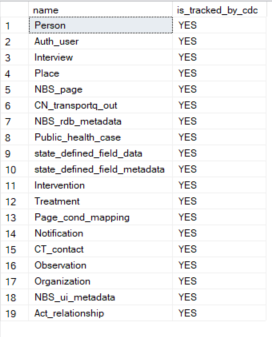
Change Data Capture tables (NBS_SRTE) 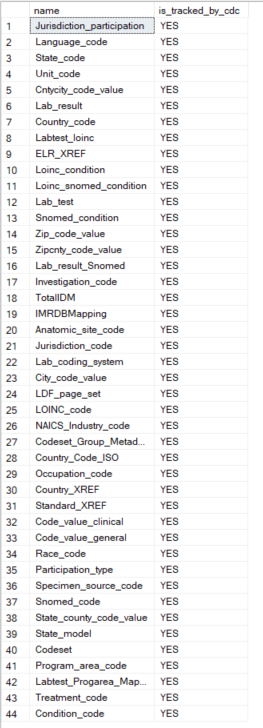
-
Back up all databases. Before going live, take backups of
NBS_ODSE,NBS_SRTE,RDB, andrdb_modern(if applicable).
Deploy RTR services
Now that you have completed database setup and onboarding, deploy the RTR services in the following order. Each service depends on the previous one completing successfully before deployment begins.
Confirm that Kubernetes secrets exist for each RTR service user and the admin user before deploying. If you have not yet created them, see Create service users and database objects.
- Liquibase: Skip this step if you used the upgrade script path in Create required database objects.
- Debezium
- Kafka connector
- Java services
After onboarding: database upgrades
Database upgrades apply schema changes required by each NBS 7 release. Run database upgrades when you update NBS 7 to a new release version.
- If you chose the Liquibase path during onboarding, no action is needed. The Liquibase container applies schema changes automatically with each release.
- If you chose the upgrade scripts path, navigate to 02_onboarding_script_data_load and run all of the scripts in the order listed in the repository. Onboarding scripts are excluded from upgrade runs.